> For the complete documentation index, see [llms.txt](https://wplake.gitbook.io/advanced-views/llms.txt). Markdown versions of documentation pages are available by appending `.md` to page URLs; this page is available as [Markdown](https://wplake.gitbook.io/advanced-views/integrations/page-builders/brizy/displaying-custom-fields.md).
# Displaying custom fields in Brizy
Using [*Layouts*](/advanced-views/getting-started/first-layout.md) from Advanced Views, you can display any custom fields in [Brizy](https://wordpress.org/plugins/brizy/). Smart templates [give you complete control](/advanced-views/getting-started/key-aspects.md) over the markup and display logic without extra hassle.
{% hint style="success" %}
Advanced Views natively supports fields from multiple providers:
1. [WordPress fields](/advanced-views/fields/wordpress-fields.md) (like page title, excerpt, user name, etc)
2. [Advanced Custom Fields](/advanced-views/fields/meta-plugins/advanced-custom-fields.md) (any field type)
3. [MetaBox fields](/advanced-views/fields/meta-plugins/meta-box-fields.md) (any field type)
4. [Pods fields](/advanced-views/fields/meta-plugins/pods-fields.md) (any field type)
5. [WooCommerce Product fields](/advanced-views/fields/woo-product-fields.md) (like price, SKU, height, etc)
To display [other fields](/advanced-views/fields/other-fields.md) made by your theme or plugins, just [customize the default Layout template](/advanced-views/layouts/code-fields/custom-template.md).
{% endhint %}
## 1. How to display custom fields on a single page
{% hint style="info" %}
The steps below apply to the Brizy editor. If you edit pages using the Gutenberg editor, refer to our [Gutenberg editor guide](/advanced-views/integrations/editors/gutenberg/displaying-custom-fields.md) instead.
{% endhint %}
In Advanced Views, *Layouts* are embedded using native WordPress shortcodes, which you can paste anywhere in the Brizy editor:
1. [Create a *Layout*](/advanced-views/getting-started/first-layout.md)
2. Add target fields in the *Fields* tab and save the *Layout*
3. Copy a [Layout embedding shortcode](/advanced-views/layouts/embedding-shortcode.md)
4. Edit the target page using the Brizy editor
5. **Within the editor**: Click on the plus and add a Shortcode element
6. **Within the Shortcode element:** Click on the WP icon and paste the *Layout* embedding shortcode inside the textbox\
(Inside the Builder, the shortcode preview may display a rendering error as it misses the context; you can safely ignore it)
7. Save the page and visit it to see the result
To change the default field appearance, open the created *Layout* and [customize the *Layout* template](/advanced-views/layouts/code-fields/custom-template.md).
{% hint style="success" %}
By default, *Layout* displays chosen fields of the current page. You can display fields from other sources by tuning the [Layout shortcode arguments](/advanced-views/layouts/embedding-shortcode.md).
{% endhint %}
## 2. How to display custom fields in a Popup
{% hint style="info" %}
A common use case is [displaying custom fields from an Options page](/advanced-views/field-sources/options-page.md) in the popup.
{% endhint %}
Brizy Popups let you create and customize popups using the Brizy editor. With Advanced Views, you can not only display custom fields inside the Popup but also add conditions, merge fields, and modify field value output:
1. [Create a *Layout*](/advanced-views/getting-started/first-layout.md)
2. Add target fields in the *Fields* tab and save the *Layout*
3. Copy a[ *Layout* embedding shortcode](/advanced-views/layouts/embedding-shortcode.md)
4. Modify [*Layout* shortcode](/advanced-views/layouts/embedding-shortcode.md): add `object-id="options"` argument (to [display fields from the Options page](/advanced-views/field-sources/options-page.md))
5. Open the Brizy popups (Dashboard → Brizy → Popups)
6. Choose any Popup (or add a new one)
7. Launch the Brizy editor by clicking the edit button
8. **Within the editor**: Click the plus icon and add a Shortcode element
9. **Within the Shortcode element:** Click on the WP icon and paste the *Layout* embedding shortcode inside the text box\
(Inside the Builder, the shortcode preview may display a rendering error as it misses the context; you can safely ignore it)
10. Save the popup and visit any page to see the result
{% hint style="info" %}
Unlike page-specific custom fields, custom fields from an Options page are site-wide. As a result, the same values are displayed on every site page.
{% endhint %}
## 3. How to display custom fields in a Template
Brizy templates allow you to replace your WordPress theme’s default templates with custom templates built using Brizy. With Advanced Views, you can enhance these templates by incorporating custom elements and advanced conditional logic:
### 3.1) Custom Post Type template
If multiple pages or Custom Post Type (CPT) items share the same set of custom fields, you don't need to embed an *Advanced Layout* in each item individually. Instead, embed the *Layout* in the appropriate Brizy template, so it is rendered automatically for every corresponding item:
1. [Create a *Layout*](/advanced-views/getting-started/first-layout.md)
2. Add target fields in the *Fields* tab and save the *Layout*
3. Copy a[ *Layout* embedding shortcode](/advanced-views/layouts/embedding-shortcode.md)
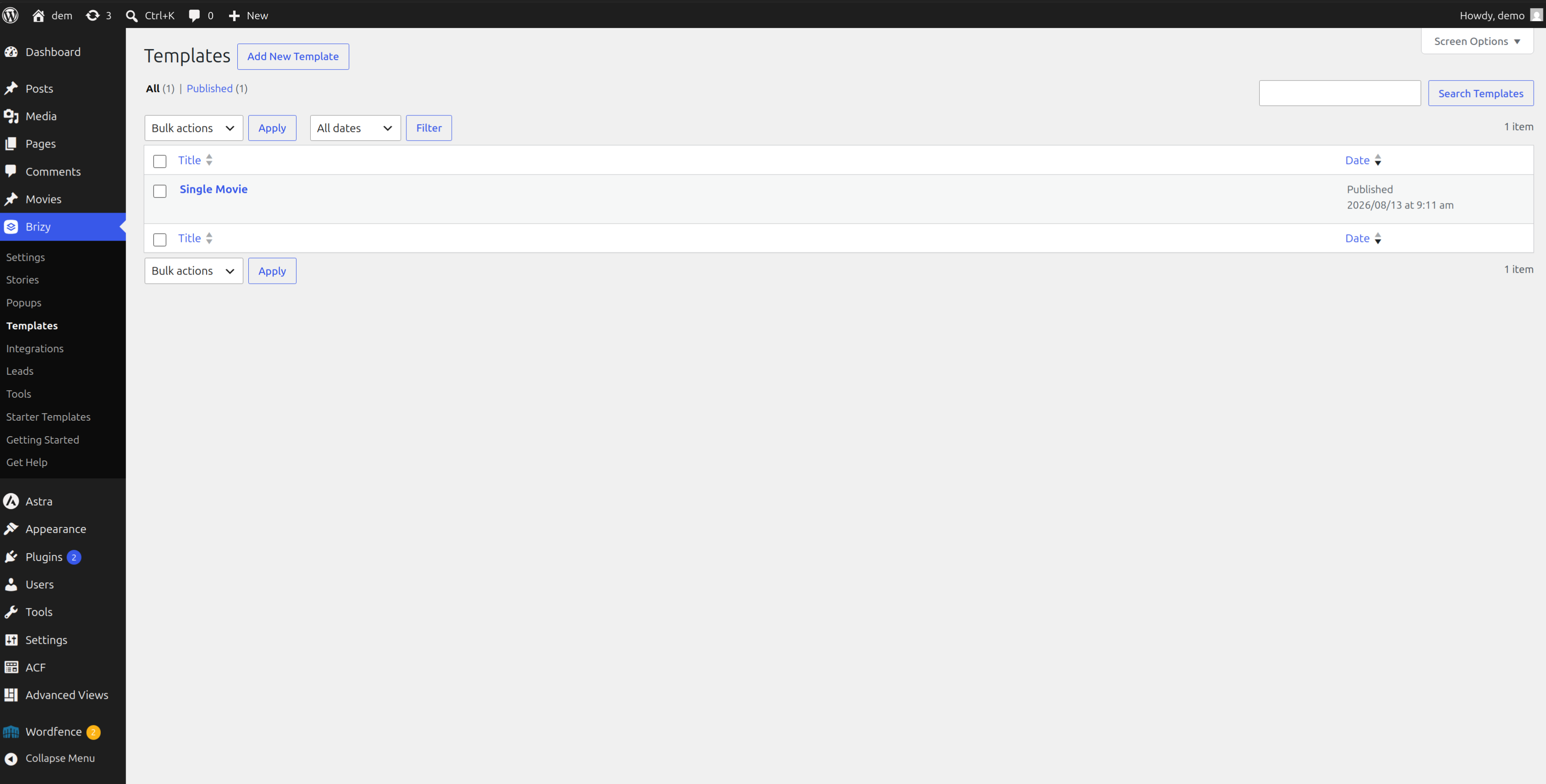
4. Open the Brizy templates (Dashboard → Brizy → Templates)
5. Choose any Template (or add a new one for CPT items)
6. Launch the Brizy editor by clicking the edit button
7. **Within the editor**: Click the plus icon and add a Shortcode element
8. **Within the Shortcode element:** Click on the WP icon and paste the *Layout* embedding shortcode inside the text box\
(Inside the Builder, the shortcode preview may display a rendering error as it misses the context; you can safely ignore it)
9. Save the template and visit any CPT item to see the result
{% hint style="warning" %}
If you created a new template for the CPT, make sure you have configured the **Display Conditions** so that the template is applied to all your CPT items.
{% endhint %}
When the template is rendered, the embedded *Layout* automatically displays the custom fields for the current page, post, or other content item using that template.
{% hint style="success" %}
*Layout* IDs are unique string identifiers, not WordPress post IDs. Unlike post IDs, they remain unchanged when *Layouts* are exported and imported, ensuring consistent references across different environments, such as staging and production.
{% endhint %}