> For the complete documentation index, see [llms.txt](https://wplake.gitbook.io/advanced-views/llms.txt). Markdown versions of documentation pages are available by appending `.md` to page URLs; this page is available as [Markdown](https://wplake.gitbook.io/advanced-views/integrations/page-builders/breakdance/displaying-custom-fields.md).
# Displaying custom fields in Breakdance
Using [*Layouts*](/advanced-views/getting-started/first-layout.md) from Advanced Views, you can display any custom fields in [Breakdance](https://breakdance.com/). Smart templates [give you complete control](/advanced-views/getting-started/key-aspects.md) over the markup and display logic without extra hassle.
{% hint style="success" %}
Advanced Views natively supports fields from multiple providers:
1. [WordPress fields](/advanced-views/fields/wordpress-fields.md) (like page title, excerpt, user name, etc)
2. [Advanced Custom Fields](/advanced-views/fields/meta-plugins/advanced-custom-fields.md) (any field type)
3. [MetaBox fields](/advanced-views/fields/meta-plugins/meta-box-fields.md) (any field type)
4. [Pods fields](/advanced-views/fields/meta-plugins/pods-fields.md) (any field type)
5. [WooCommerce Product fields](/advanced-views/fields/woo-product-fields.md) (like price, SKU, height, etc)
To display [other fields](/advanced-views/fields/other-fields.md) made by your theme or plugins, just [customize the default Layout template](/advanced-views/layouts/code-fields/custom-template.md).
{% endhint %}
## 1. How to display custom fields on a single page
{% hint style="info" %}
The steps below apply to the Breakdance editor. If you edit pages using the Gutenberg editor, refer to our [Gutenberg editor guide](/advanced-views/integrations/editors/gutenberg/displaying-custom-fields.md) instead.
{% endhint %}
In Advanced Views, *Layouts* are embedded using native WordPress shortcodes, which you can paste anywhere in the Breakdance Builder editor:
1. [Create a *Layout*](/advanced-views/getting-started/first-layout.md)
2. Add target fields in the *Fields* tab and save the *Layout*
3. Copy a [Layout embedding shortcode](/advanced-views/layouts/embedding-shortcode.md)
4. Edit the target page using the Breakdance editor
5. **Within the editor**: Click on the plus and add a [Shortcode element](https://breakdance.com/documentation/reference/elements/advanced/shortcode/)
6. **Within the Shortcode element:** Paste the *Layout* embedding shortcode
7. Save the page and visit it to see the result
To change the default field appearance, open the created *Layout* and [customize the *Layout* template](/advanced-views/layouts/code-fields/custom-template.md).
{% hint style="success" %}
By default, *Layout* displays chosen fields of the current page. You can display fields from other sources by tuning the [Layout shortcode arguments](/advanced-views/layouts/embedding-shortcode.md).
{% endhint %}
## 2. How to display custom fields in a Template
### 2.1) In a Page/Custom Post Type template
If multiple pages or Custom Post Type (CPT) items share the same set of custom fields, you don't need to embed an *Advanced Layout* in each item individually. Instead, embed the *Layout* in the appropriate [Breakdance template](https://breakdance.com/documentation/templating/templating-basics/creating-a-template/), so it is rendered automatically for every corresponding item:
1. [Create a *Layout*](/advanced-views/getting-started/first-layout.md)
2. Add target fields in the *Fields* tab and save the *Layout*
3. Copy a[ *Layout* embedding shortcode](/advanced-views/layouts/embedding-shortcode.md)
4. Open the [Breakdance templates](https://breakdance.com/documentation/templating/templating-basics/creating-a-template/) (Dashboard → Breakdance → Templates)
5. Choose any Template (or add a new one for CPT items)
6. **Within the editor**: Click on the plus and add a [Shortcode element](https://breakdance.com/documentation/reference/elements/advanced/shortcode/)
7. **Within the Shortcode element:** Paste the *Layout* embedding shortcode
8. Save the template and visit any CPT item to see the result
When the template is rendered, the embedded *Layout* automatically displays the custom fields for the current page, post, or other content item using that template.
{% hint style="success" %}
*Layout* IDs are unique string identifiers, not WordPress post IDs. Unlike post IDs, they remain unchanged when *Layouts* are exported and imported, ensuring consistent references across different environments, such as staging and production.
{% endhint %}
### 2.2) In a Header/Footer template
{% hint style="info" %}
A common use case is [displaying custom fields from an Options page](/advanced-views/field-sources/options-page.md) in the site footer.
{% endhint %}
Using Breakdance, you can create a complete header or [footer layout](https://breakdance.com/documentation/headers-footers/footers/creating-a-footer/) without editing theme files. With Advanced Views, you can not only display custom fields inside a header/footer but also add conditions, merge fields, and modify field value output:
1. [Create a *Layout*](/advanced-views/getting-started/first-layout.md)
2. Add target fields in the *Fields* tab and save the *Layout*
3. Copy a [Layout embedding shortcode](/advanced-views/layouts/embedding-shortcode.md)
4. Modify [*Layout* shortcode](/advanced-views/layouts/embedding-shortcode.md): add `object-id="options"` argument (to [display fields from the Options page](/advanced-views/field-sources/options-page.md))
5. Open the target Header/[Footer](https://breakdance.com/documentation/headers-footers/footers/creating-a-footer/) (Dashboard → Breakdance → Headers/Footers).
6. **Within the editor**: Click on the plus and add a [Shortcode element](https://breakdance.com/documentation/reference/elements/advanced/shortcode/)
7. **Within the Shortcode element:** Paste the *Layout* embedding shortcode
8. Save the header/footer and visit any page to see the result
{% hint style="info" %}
Unlike page-specific custom fields, custom fields from an Options page are site-wide. As a result, the same values are displayed on every site page.
{% endhint %}
### 2.3) In a Global block
Using the [Breakdance Global Blocks](https://breakdance.com/documentation/reference/global-blocks/), you can create reusable blocks for any location, which can also be used as an item template in the [Post Loop Builder](https://breakdance.com/documentation/reference/elements/dynamic/post-loop-builder/).
With Advanced Views, you can not only display custom fields inside any block, but also add conditions, merge fields, and modify field value output:
1. [Create a *Layout*](/advanced-views/getting-started/first-layout.md)
2. Add target fields in the *Fields* tab and save the *Layout*
3. Copy a[ *Layout* embedding shortcode](/advanced-views/layouts/embedding-shortcode.md)
4. Open the [Global Blocks](https://breakdance.com/documentation/reference/global-blocks/) (Dashboard → Breakdance → Global Blocks)
5. Choose any Block (or add a new one)
6. **Within the editor**: Click on the plus and add a [Shortcode element](https://breakdance.com/documentation/reference/elements/advanced/shortcode/)
7. **Within the Shortcode element:** Paste the *Layout* embedding shortcode
8. Save the Global Block and visit the target page to see the result
{% hint style="info" %}
When the Global Block is rendered, the embedded *Layout* automatically displays the custom fields for the current page, post, or other content item using that Block. You can display fields from other sources by tuning the [Layout shortcode arguments](/advanced-views/layouts/embedding-shortcode.md).
{% endhint %}
### 2.4) In a Popup
{% hint style="info" %}
A common use case is [displaying custom fields from an Options page](/advanced-views/field-sources/options-page.md) in the popup.
{% endhint %}
Using the [Breakdance Popups](https://breakdance.com/documentation/reference/elements/site/popup/), you can craft interactive elements just the same way you create other pages. With Advanced Views, you can not only display custom fields inside a popup, but also add conditions, merge fields, and modify field value output:
1. [Create a *Layout*](/advanced-views/getting-started/first-layout.md)
2. Copy a [Layout embedding shortcode](/advanced-views/layouts/embedding-shortcode.md)
3. Modify [*Layout* shortcode](/advanced-views/layouts/embedding-shortcode.md): add `object-id="options"` argument (to [display fields from the Options page](/advanced-views/field-sources/options-page.md))
4. Open the Popups (Dashboard → Breakdance → Popups).
5. Choose any Popup (or add a new one)
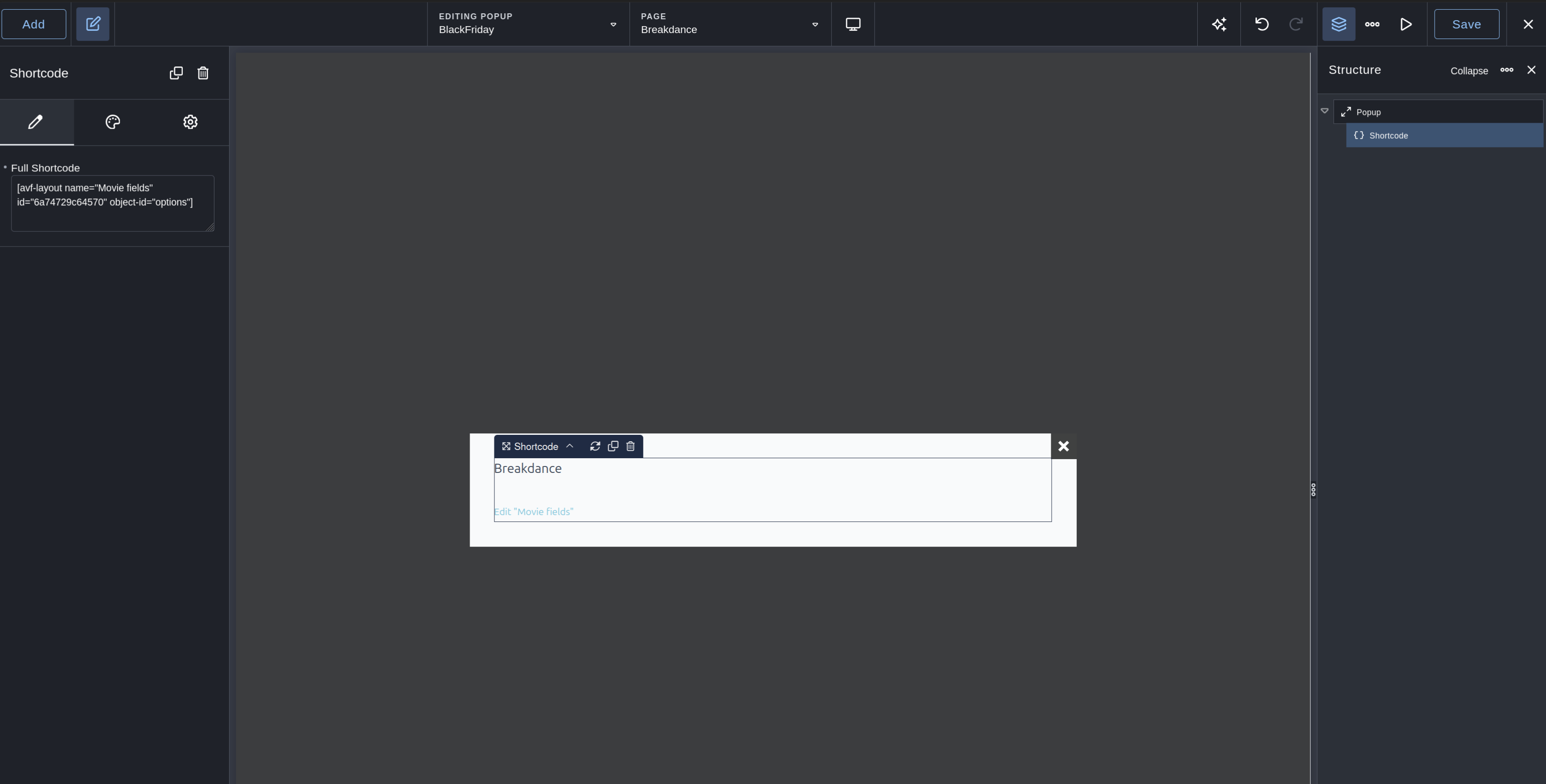
6. **Within the editor**: Click on the plus and add a [Shortcode element](https://breakdance.com/documentation/reference/elements/advanced/shortcode/)
7. **Within the Shortcode element:** Paste the *Layout* embedding shortcode
8. Save the popup and visit any page to see the result
{% hint style="info" %}
Unlike page-specific custom fields, custom fields from an Options page are site-wide. As a result, the same values are displayed on every site page.
{% endhint %}